Quick answer
iOS does not show the UDID in Settings. On the iPhone or iPad you will use, open IPAFuse's Get UDID page in Safari, download the profile and install it from Settings; the UDID then fills in automatically. Without installing a profile, connect the device to a Mac, select it in Finder and click the line under its name until the UDID appears.
What a UDID is and which device to use
A UDID identifies the physical iPhone or iPad registered for a device-bound signing certificate. Use the device that will run the app. Its serial number, IMEI, EID and Apple Account email are not substitutes. You do not need to pay or create an order to open Get UDID. If you prefer not to download a configuration profile, use Finder on a Mac.
| Identifier | What it looks like | Where to find it | Used for a signing certificate? |
|---|---|---|---|
| UDID | 25 characters with one hyphen on current devices; 40 characters on older devices | A UDID capture profile, or Finder on a Mac | Yes, the certificate profile is registered to it |
| Serial number | 10 to 12 letters and digits | Settings > General > About | No |
| IMEI | 15 digits (cellular devices) | Settings > General > About | No |
| EID | 32 digits (eSIM) | Settings > General > About | No |
Get your UDID in Safari
Open IPAFuse directly in Safari on the target device, rather than in a social app's embedded browser. If you already started checkout, use its Get UDID option so the result can return to that same checkout. The illustrations show English labels based on an iPhone 11 running iOS 18.7.7. Labels may vary by iOS version.
- Open Get UDID on ipafuse.com, or use Get UDID in the checkout you already opened. Keep this original Safari tab open.
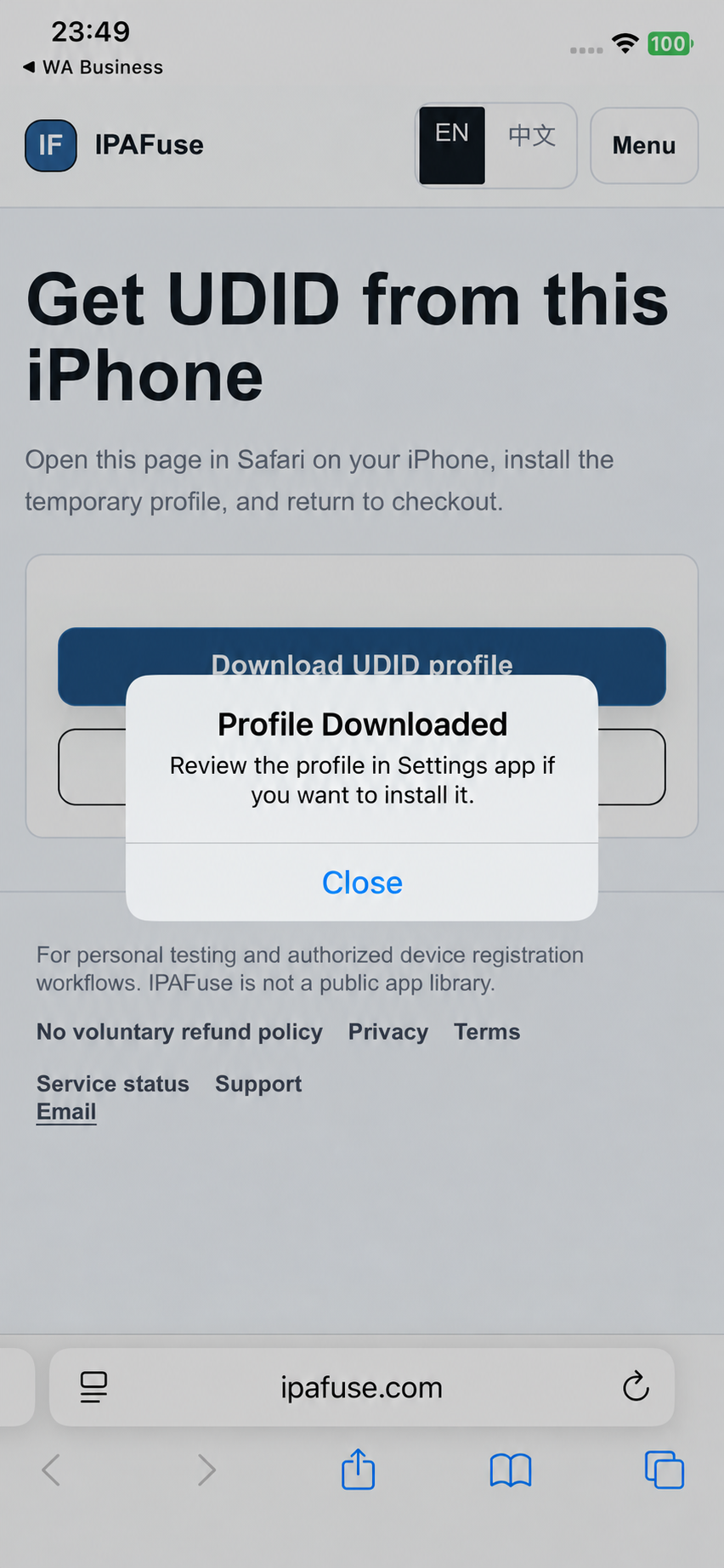
- Choose the profile download option and allow the download only if you recognize the website and request.
- Open Settings and choose Profile Downloaded; it may be grouped with other pending iPhone setup notices. You can also find the downloaded profile under General, VPN & Device Management. Review the details below before deciding whether to install. Downloading alone does not finish capture.
- After installation, return to Safari. If it does not reopen automatically, switch back to the original Safari tab where you started checkout.
- Check that the UDID field is filled before paying. Keep the complete value, including any hyphen, and confirm that it belongs to the device you intend to register.
Review the profile before installing
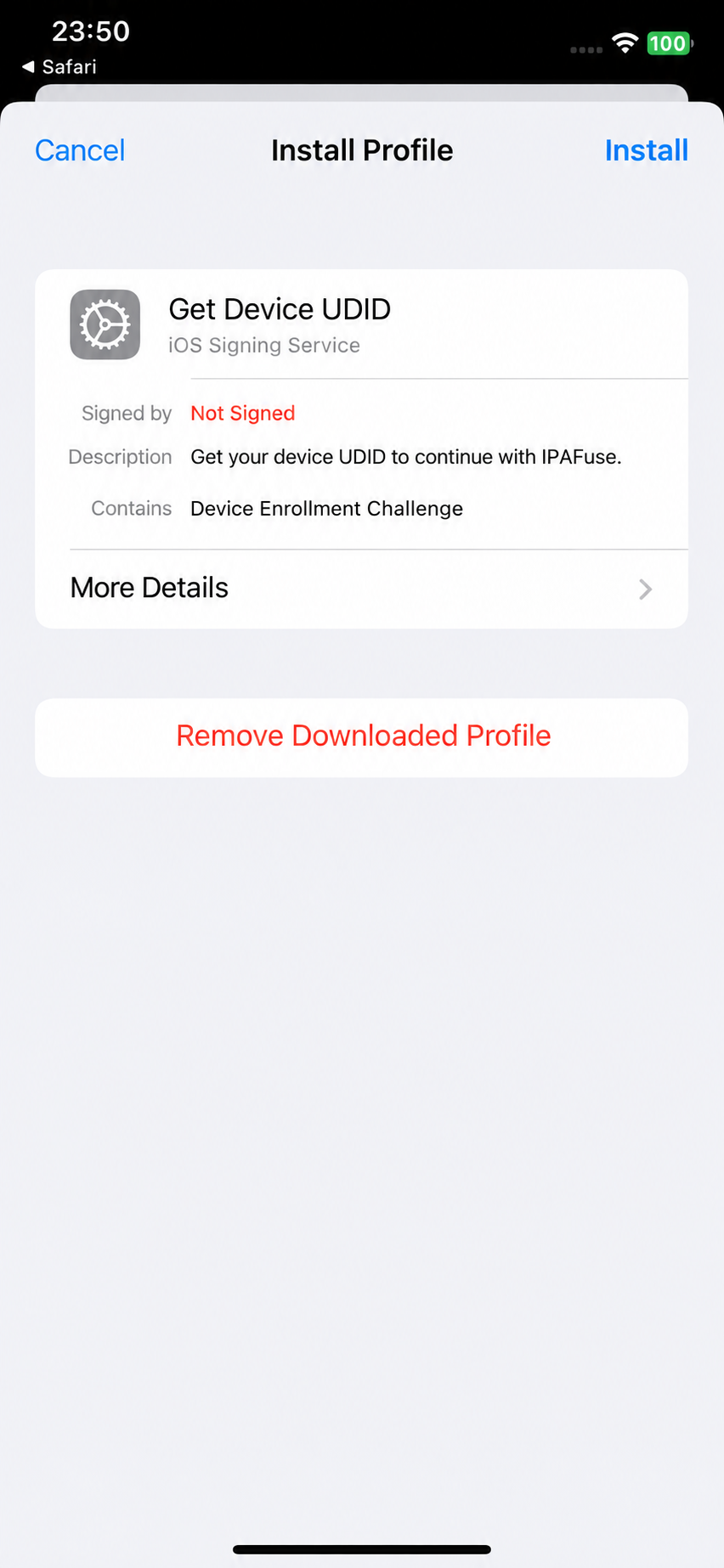
The IPAFuse capture profile requests the device UDID. It is separate from the mobileprovision file used later to sign an app. The profile shown here is unsigned, and iOS displays an unsigned-profile warning before installation; it is not an Apple-signed identity check. Profile names alone do not establish trust. Continue only if you started from ipafuse.com, recognize the request and agree to share this device's UDID with IPAFuse. Otherwise cancel and use Finder. This process does not require your Apple Account password or payment details.
Name: Get Device UDID
Organization: iOS Signing Service
Requested device attribute: UDID
Find the UDID with Finder on a Mac
Finder provides another way to copy the identifier without installing the IPAFuse capture profile. You need a Mac, a cable and access to the iPhone or iPad.
- Connect the device to your Mac. If asked, unlock the device and approve Trust This Computer only for a computer you trust.
- In Finder, select the connected iPhone or iPad under Locations and open the General tab.
- Below the device name, click the device-family information twice to display the UDID.
- Control-click the displayed identifier and choose Copy UDID. Paste the full value into the UDID field for the same device; do not substitute the serial number.
If capture does not return to checkout
First reopen the original Safari tab if you started from checkout. If the field is still empty, start a fresh Get UDID request from that checkout and use the new download. For a failed return from the standalone Get UDID page, you can also begin a fresh capture from checkout without paying. Avoid old downloads, copied capture links and switching devices halfway through. If capture still fails, use Finder or contact support with the visible error.
If Profile Downloaded is missing
Apple removes a downloaded profile if it has not been installed within eight minutes. Only one downloaded profile can wait for installation at a time, so a later download can replace an earlier one. Start again from IPAFuse and install the fresh download promptly. A website request can also expire separately; an old file is not a reliable way to resume capture. Settings labels can vary with your device and software version.
Check the identifier before you buy
Copy and paste rather than retyping, preserve any hyphen, and check the identifier on the device you intend to register. Once registration is processed it cannot be moved to another phone. If you suspect a mistake after purchase, contact support before submitting another registration. Keep the full UDID private; mask it in public screenshots. Review the plan's warranty and purchase conditions before payment.
Frequently asked questions
Can I see my UDID in iPhone Settings?
No. Settings > General > About shows the serial number, IMEI and EID, but not the UDID. To read the UDID you need either a configuration profile that reports it, such as IPAFuse's Get UDID page, or Finder on a Mac.
Is the UDID the same as the serial number or IMEI?
No. They are different identifiers. A signing certificate's profile is registered to the UDID, so entering the serial number, IMEI or EID instead will not work. Current devices use a 25-character UDID with one hyphen; older devices use 40 characters.
Is it safe to install the UDID profile?
The IPAFuse capture profile only asks the device to report its UDID and does not need your Apple Account password or payment details. iOS labels it as not signed. Install it only if you started from ipafuse.com; otherwise use Finder instead.
Do I have to pay before getting my UDID?
No. You can open Get UDID without creating an order. If you have already started checkout, use its Get UDID option so the result returns to that same checkout.
Can I move my certificate to another iPhone later?
No. Once the UDID is registered the certificate covers only that device and cannot be transferred. Check the UDID on the device you plan to use before paying, and contact support before purchase if you are unsure.